Screen saver (rooted TVs, experimental)
A screen saver shows pictures when nobody has pressed a button for a while. Hearth's saver replaces the TV's own saver with your pictures, GIFs, videos or a slideshow. It is on at first and plays a short built-in fireplace video. If its set-up fails, Hearth turns it off and tells you.
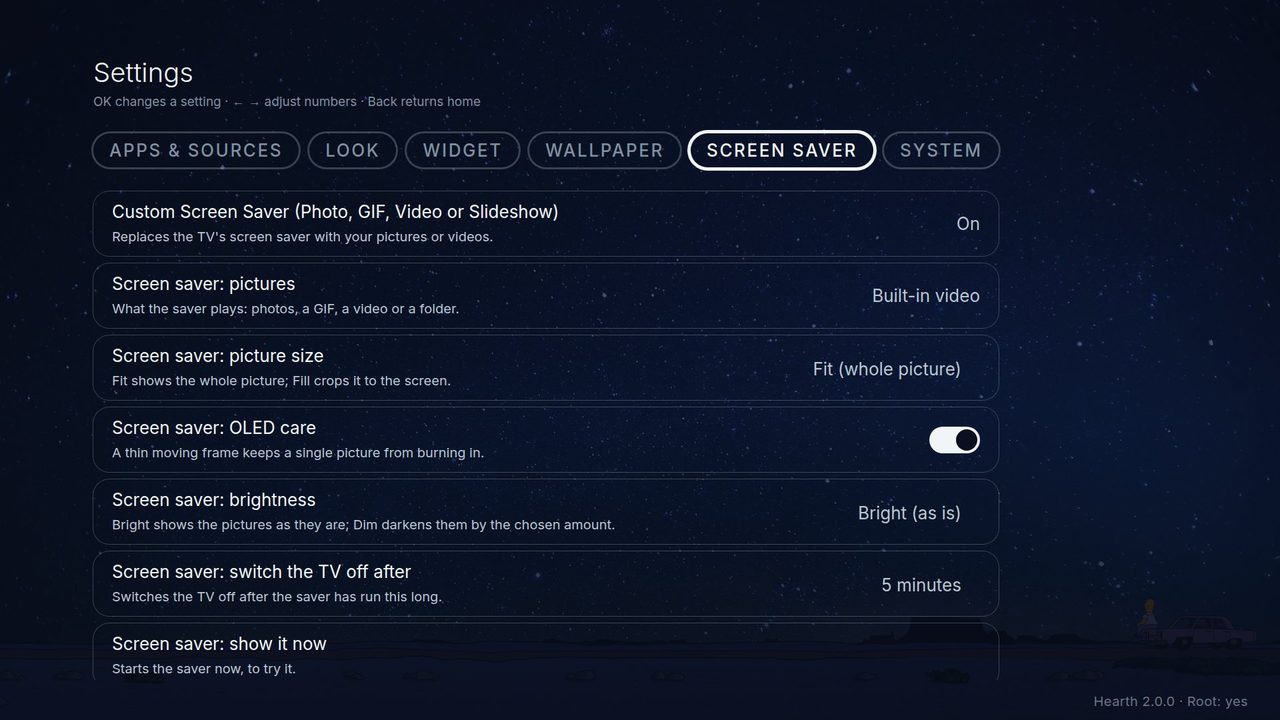
Open Settings, Screen saver:
- Custom Screen Saver: the main switch.
- Screensaver file or folder: what it plays: a photo, a GIF, a video (mp4, mkv or webm, plays quietly to its end), a folder, the bundled photos, or the same as the wallpaper. A folder can be on a NAS: see Network folder.
- Screensaver: change picture every and Screensaver: shuffle, for slideshows.
- Picture size: Fit shows the whole picture; Fill crops it to the screen.
- OLED care: a thin moving frame so one still picture cannot burn into the screen.
- Brightness: Bright, or Dim by an amount you choose, from 10% to 80% in steps of 10 (a dark layer; the backlight is not touched).
- Switch the TV off after: the TV goes to sleep after the saver has run this long (5 minutes at first).
- Show it now: starts it at once, so you can try it.
The TV decides when the saver starts. It uses the idle time from the TV's own screen saver settings, so that setting must be on. Any key stops the saver.
Good to know:
- Nothing is written on the TV's storage. A restart puts LG's saver back, and Hearth puts its own on again.
- GIFs, videos and fast slideshows use more power than one still picture. A very big GIF or video may use a lot of memory.
- Put your own saver pictures in
/media/developer/screensavers(see Wallpaper). - On webOS 10 and newer this is untested. The TV's own saver is built differently there and some TVs refuse the change. Some TVs also hold the saver back (OLED, or inputs with no signal).
- If it does not work, switch on the Debug tab (see System) and send us the report.