System
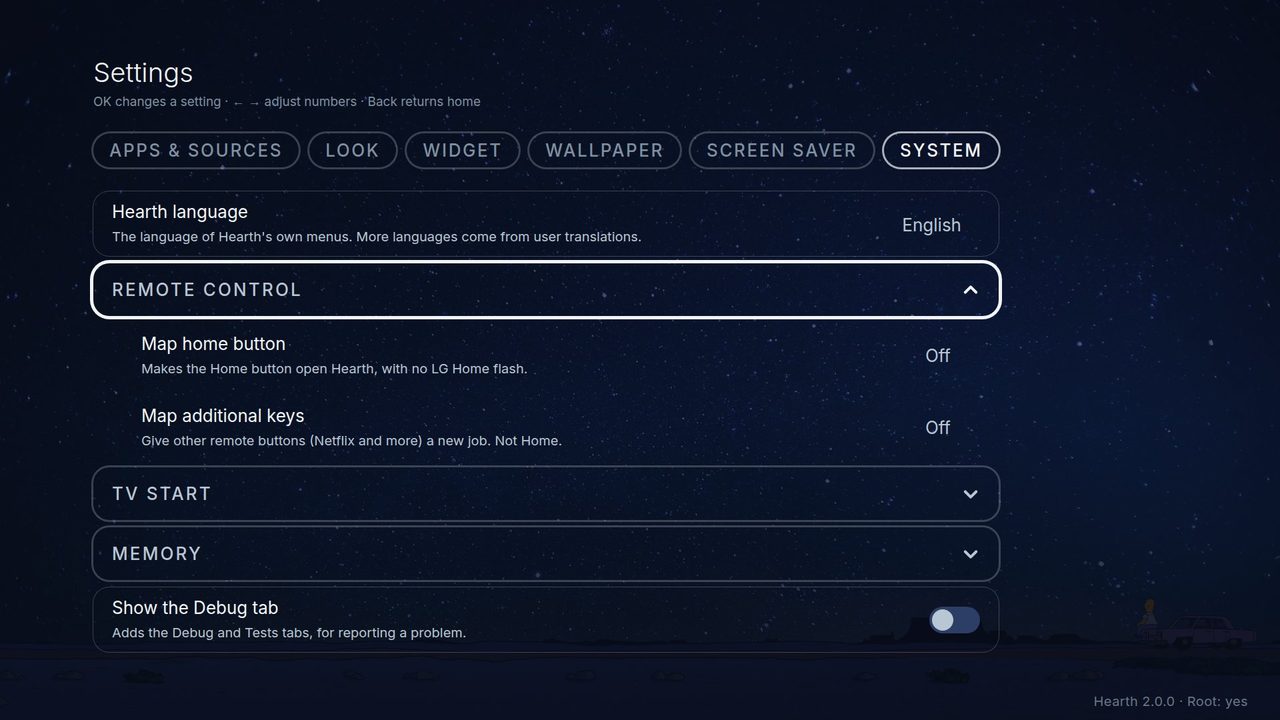
Settings, System holds the things that talk to the TV itself. Most of them need a rooted TV. On a TV that is not rooted they are grey and say why, and only the update row, the language row, the app-list row, the no-root guide and the Debug switch stay. See Without root.
Check for updates
The first row. It tells you if a newer Hearth exists and, on a rooted TV, can install it for you. Hearth looks only when you press OK, never by itself, and it needs the TV to be online.
Looking. Press OK on the row. Hearth asks the internet for a small list of Hearth versions. This screen shows every version newer than yours, newest first. Press Up and Down to choose a version; on the right you read a short summary of what changed in it. If yours is already the newest, the screen says Hearth is up to date. If the TV cannot reach the internet, it says Could not check; press OK to try again.
Installing (rooted TV). Choose the version you want and press OK. Hearth asks Install Hearth ...?. Choose Install. Hearth then:
- downloads the file (a bar shows the percent),
- checks the file against a fingerprint (a long code that proves the file is the real one and nothing broke on the way),
- installs it over your old Hearth,
- shows the result.
The bar is only a guide. The first part, the download, is a real percent. The installing part has no real percent, so the bar moves in steps. Please wait and do not turn the TV off. Your settings, apps and favourites stay. The screen may close for a moment while Hearth is replaced; if Hearth does not come back by itself, open it again from the app list. If you like, make a settings backup first.
If it does not work. Hearth changes nothing and shows a button that opens the Homebrew Channel, where you can update by hand. A version with no direct download does the same.
TV without root. A TV that is not rooted cannot install by itself. OK opens the Homebrew Channel for you, where you update Hearth.
Debug tab on. The Left and Right arrows pretend that you have an older version. This is only a test for the list.
Hearth language
The first row. Press Left or Right to switch between English, the languages that come with Hearth (French, Polish and Brazilian Portuguese checked by native speakers; Italian and Thai (by contributors), Indonesian, Spanish, German, Arabic and Russian; no root needed) and your own language file (press OK to load it, rooted TVs). The languages made by a computer helper say (machine translated) until a person who speaks the language checks them. Anything a language lacks stays in English. Everything changes at once. Remove the language file deletes your own file again. How to make or share a language: Language files.
Remote control
Map home button
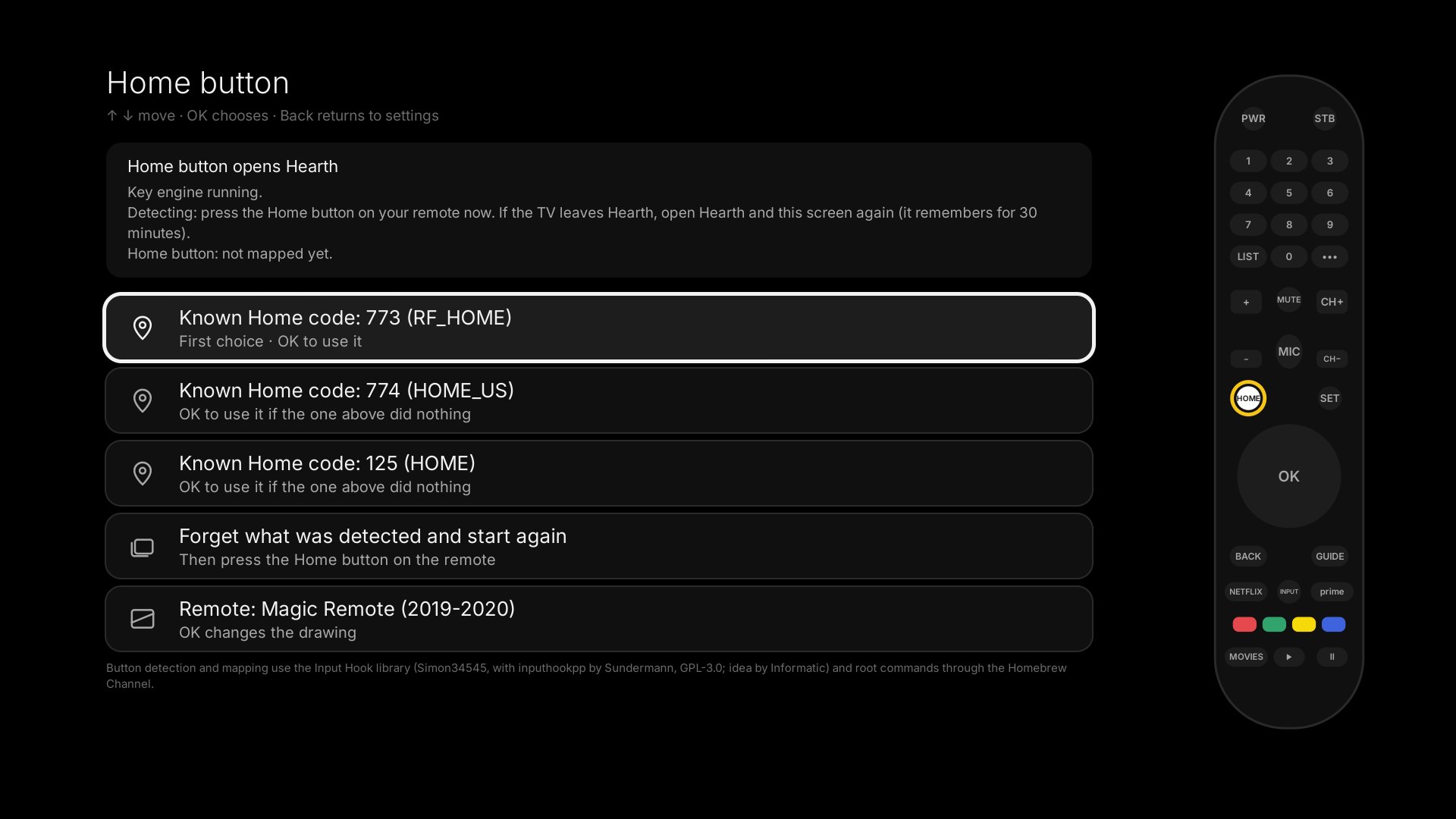
This makes the Home button on your remote open Hearth, with no flash of LG's home screen. Hearth carries a small key helper (from the open-source project Input Hook), so you need no other app.
- Open Settings, System, Remote control, Map home button.
- Press the Home button on your remote when Hearth asks.
- If Hearth knows the button's number (773, 774 or 125 are the usual ones), it maps it by itself and a message tells you whether it worked. If it does not know it, a guide shows the pressed button on a drawing of your remote, and you can pick the number by hand.
- The mapping stays after restarts.
If the separate Input Hook app is installed with its own settings, Hearth does not touch them. It greys out its rows and says why.
Map additional keys (experimental)
Give the other buttons on your remote, such as the colour keys and other dedicated buttons, a new job: open an app, switch to an input (Hearth lists the TV's inputs), act as another remote button (for example mute), or run a TV action. Actions not yet tried on a real TV are marked untested. Press Add a button and press the button you mean. The keys Home, arrows, OK, Back, power, volume, channels and numbers are never taken. Hearth uses the same key helper as Map home button, so the changes stay after restarts and no key filter is added to the TV. On a webOS 3 TV, LG Home has to be opened with the Home key: if Hearth does not know yet which part of the TV takes that key, it opens and asks you to press the Home button once, and remembers the answer.
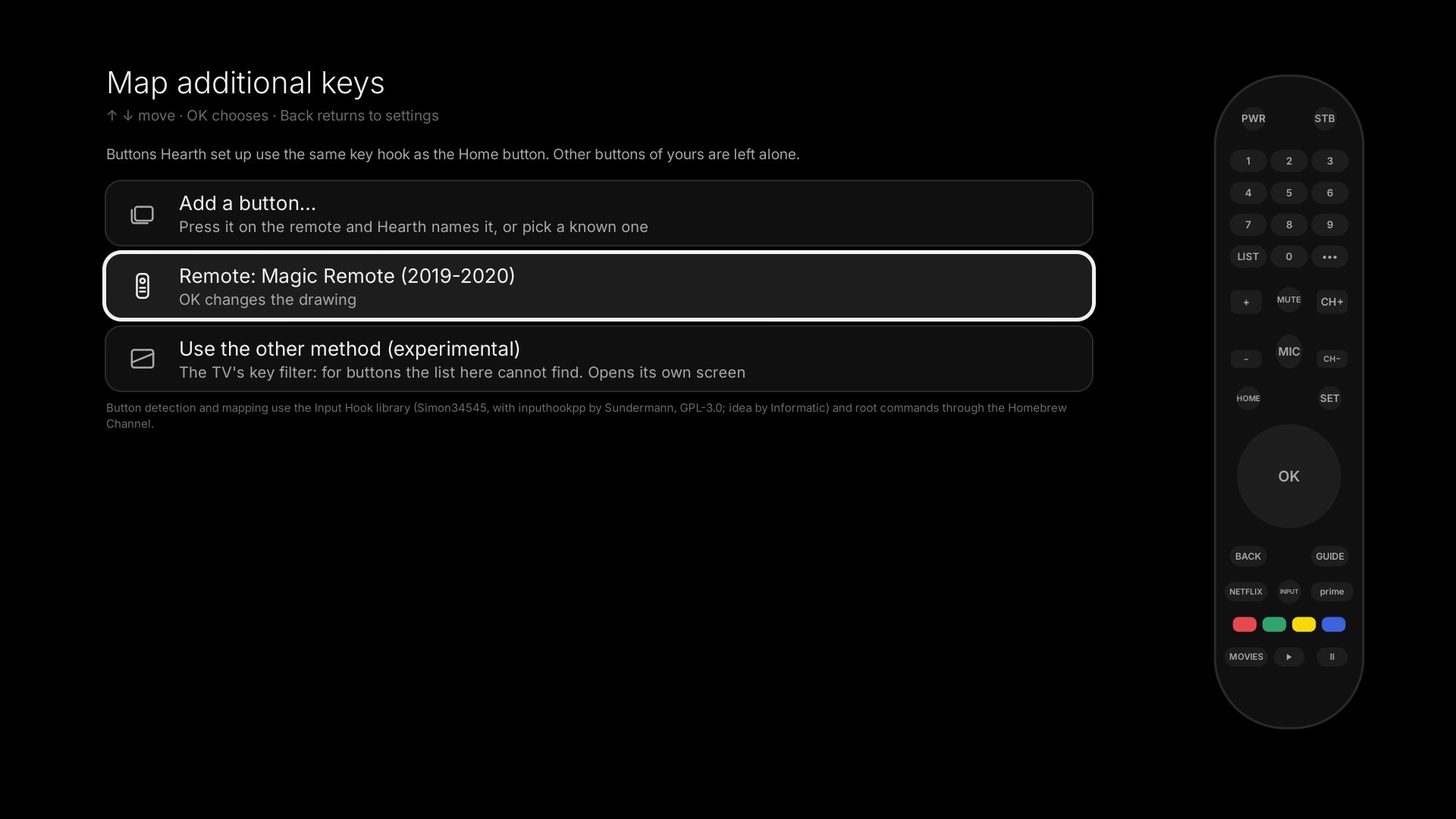
Before the first button screen opens, Hearth shows a short warning. If the remote ever stops answering after you map buttons, restart the TV first. If that does not help, follow the steps in The remote stops answering.
TV start
- When the TV turns on, open...: choose Hearth (or any app) to open when you switch the TV on, instead of Live TV. It starts working after one full restart of the TV. Choose TV default to undo it. It can also react to a network wake-up where the TV supports it. On a webOS 3 TV, Hearth first shows the same kind of warning, because opening an app at power-on may hang some of these TVs at the logo.
- Add Hearth as a TV input: one switch (On / Off). Press OK to list Hearth next to HDMI 1 in the TV's input list; press it again to take Hearth out. For the TV to start on Hearth, also set the TV to start on its last input. If the TV refuses, Hearth says so and writes the details to
/tmp/launcher-input.log. Rooted TVs only. On a webOS 3 TV, Hearth first shows a warning: on some of these TVs, starting on this input makes the TV hang at the logo. Additional steps may be required to get back to Hearth. You can choose to keep it off. - Replace LG Home (helper): one click installs a small helper that watches the TV. When LG Home would show, Hearth opens instead. LG Home can flash for a moment first; the Home button mapping above avoids the flash for the Home key. Turn this off before you uninstall Hearth (if you forget, the next TV start cleans up).
- Replace LG Home with SAM (experimental): another way to put Hearth where LG Home would be. The TV has a part called SAM that keeps the list of apps and decides what opens when you press Home. This setting puts a plain black page in LG Home's place and asks SAM to read it. Then the TV opens Hearth wherever it would open LG Home, with no flash. SAM may be restarted once while this is switched on, and the screen can blink for a few seconds. It starts about 25 seconds after the TV starts. Only tested on webOS 7. It is the first of the recommended settings in the README because LG Home never flashes with it, and the method is from Glasshouse (credited in the README). It cannot be on at the same time as the helper above: each one is greyed out while the other is on. Switch it off here to give LG Home its place back; on a TV that had to restart SAM, restart the TV once more afterwards.
- Show the LG logo when the TV starts: LG's own switch, normally hidden in a secret menu. Turn it off for a cleaner start.
- Set Hearth as the TV's Home app (experimental): writes Hearth into the TV's own Home setting. It worked on webOS 4.5 and does not work on webOS 7.6. It cannot be used together with Replace LG Home.
- Remove Hearth from the TV's inputs: shows only if an old Hearth added itself as an input; press OK to take it out.
- App list from the TV without root and Open Hearth without root: guide: only on TVs that are not rooted. See Without root.
Memory (rooted, experimental)
- LG preloaded apps: LG keeps apps like YouTube, the browser and other video apps half-awake in the background, so they open fast. On some TVs that uses hundreds of megabytes. This list shows them and how much memory each uses. Press OK to switch one off (it then opens a little slower) or back to LG's setting. Nothing that is running is closed. Everything back to LG's setting undoes it all.
- Keep Hearth ready: asks the TV to keep Hearth in memory, so Home opens it at once. It uses TV memory, so you see a warning first. If a step fails, the switch goes back to Off and says why.
- Reopen Hearth if the TV closed it: works only together with Keep Hearth ready (it is grey while that is off). Both are grey on a TV that has no memory list.
Debug tab
Show the Debug tab adds two tabs, Debug and Tests, for finding problems. Switch it on when you report a problem. It shows what Hearth sees (versions, the TV's answers, a list of events). A rooted TV also keeps the report in /tmp/hearth-debug.txt. Send it with your issue on GitHub, or take a photo of the screen.